Would you like to sign out?

Select Country

  • Afghanistan English
  • Albania English
  • Algeria English
  • American Samoa English
  • Andorra English
  • Angola English
  • Anguilla English
  • Antarctica English
  • Antigua and Barbuda English
  • Argentina Español
  • Armenia English
  • Aruba English
  • Australia English
  • Austria English
  • Azerbaijan English
  • Bahamas English
  • Bahrain English
  • Bangladesh English
  • Barbados English
  • Belarus English
  • Belgium English
  • Belize English
  • Benin English
  • Bermuda English
  • Bhutan English
  • Bolivia Español
  • Bosnia and Herzegovina English
  • Botswana English
  • Bouvet Island English
  • Brazil English
  • British Indian Ocean Territory English
  • British Virgin Islands English
  • Brunei English
  • Bulgaria English
  • Burkina Faso English
  • Burundi English
  • Cambodia English
  • Cameroon English
  • Canada English
  • Cape Verde English
  • Caribbean Netherlands English
  • Cayman Islands English
  • Central African Republic English
  • Chad English
  • Chile Español
  • Christmas Island English
  • Cocos (Keeling) Islands English
  • Colombia Español
  • Comoros English
  • Congo English
  • Cook Islands English
  • Costa Rica Español
  • Côte d’Ivoire English
  • Croatia English
  • Cuba Español
  • Curaçao English
  • Cyprus English
  • Czech Republic English
  • Democratic Republic of the Congo English
  • Denmark English
  • Djibouti English
  • Dominica English
  • Dominican Republic Español
  • Ecuador Español
  • Egypt English
  • El Salvador Español
  • Equatorial Guinea English
  • Eritrea English
  • Estonia English
  • Ethiopia English
  • Falkland Islands English
  • Faroe Islands English
  • Fiji English
  • Finland English
  • France English
  • French Guiana Español
  • French Polynesia English
  • French Southern Territories English
  • Gabon English
  • Gambia English
  • Georgia English
  • Germany English
  • Ghana English
  • Gibraltar English
  • Greece English
  • Greenland English
  • Grenada English
  • Guadeloupe Español
  • Guam English
  • Guatemala Español
  • Guernsey English
  • Guinea English
  • Guinea-Bissau English
  • Guyana English
  • Haiti Español
  • Heard Island and McDonald Islands English
  • Honduras Español
  • Hong Kong English
  • Hungary English
  • Iceland English
  • India English
  • Indonesia English
  • Iran English
  • Iraq English
  • Ireland English
  • Isle of Man English
  • Israel English
  • Italy English
  • Jamaica English
  • Japan 日本語
  • Jersey English
  • Jordan English
  • Kazakhstan English
  • Kenya English
  • Kiribati English
  • South Korea 한국어
  • Kuwait English
  • Kyrgyzstan English
  • Laos English
  • Latvia English
  • Lebanon English
  • Lesotho English
  • Liberia English
  • Libya English
  • Liechtenstein English
  • Lithuania English
  • Luxembourg English
  • Macau English
  • Madagascar English
  • Malawi English
  • Malaysia English
  • Maldives English
  • Mali English
  • Malta English
  • Marshall Islands English
  • Martinique English
  • Mauritania English
  • Mauritius English
  • Mayotte English
  • Mexico Español
  • Micronesia English
  • Moldova English
  • Monaco English
  • Mongolia English
  • Montenegro English
  • Montserrat English
  • Morocco English
  • Mozambique English
  • Myanmar English
  • Namibia English
  • Nauru English
  • Nepal English
  • Netherlands English
  • New Caledonia English
  • New Zealand English
  • Nicaragua Español
  • Niger English
  • Nigeria English
  • Niue English
  • Norfolk Island English
  • Northern Mariana Islands English
  • Norway English
  • Oman English
  • Pakistan English
  • Palau English
  • Palestine English
  • Panama Español
  • Papua New Guinea English
  • Paraguay Español
  • Peru Español
  • Philippines English
  • Pitcairn Islands English
  • Poland English
  • Portugal Español
  • Puerto Rico Español
  • Qatar English
  • Réunion English
  • Romania English
  • Russia English
  • Rwanda English
  • Saint Barthélemy Español
  • Saint Helena English
  • Saint Kitts and Nevis English
  • Saint Lucia English
  • Saint Martin Español
  • Saint Pierre and Miquelon English
  • Saint Vincent and the Grenadines English
  • Samoa English
  • San Marino English
  • São Tomé and Príncipe English
  • Saudi Arabia English
  • Senegal English
  • Serbia English
  • Seychelles English
  • Sierra Leone English
  • Singapore English
  • Sint Maarten English
  • Slovakia English
  • Slovenia English
  • Solomon Islands English
  • Somalia English
  • South Africa English
  • South Georgia English
  • South Sudan English
  • Spain English
  • Sri Lanka English
  • Sudan English
  • Suriname English
  • Svalbard and Jan Mayen English
  • Eswatini English
  • Sweden English
  • Switzerland English
  • Syria English
  • Taiwan English
  • Tajikistan English
  • Tanzania English
  • Thailand English
  • Togo English
  • Tokelau English
  • Tonga English
  • Trinidad and Tobago English
  • Tunisia English
  • Turkey English
  • Turkmenistan English
  • Turks and Caicos Islands English
  • Tuvalu English
  • U.S. Virgin Islands English
  • Uganda English
  • Ukraine English
  • United Arab Emirates English
  • United Kingdom English
  • United States English
  • U.S. Minor Outlying Islands English
  • Uruguay Español
  • Uzbekistan English
  • Vanuatu English
  • Vatican City English
  • Venezuela Español
  • Vietnam English
  • Wallis and Futuna English
  • Western Sahara English
  • Yemen English
  • Zambia English
  • Zimbabwe English
  • Åland Islands English
  • East Timor English
  • Netherlands Antilles English
  • Serbia and Montenegro English
  • North Macedonia English
  • Timor-Leste English

Geometry Modeling Techniques for Bridge Engineers

June 1, 2020
BLOG TIPS & TUTORIALS

Please fill out the Download Section (Click here) below the Comment Section to download the Full Webinar PDF File


In May 2020,  we hosted a webinar, “Mastering midas Civil : Geometry Modeling Techniques for Bridge Engineers Seeking for More" by Jihoon Kang, Training Manager/MIDASIT.


We will start creating geometry models efficiently, following Lesson 1. GUI Techniques. In midas Civil, we can simply create 1D, 2D, and 3D elements and easily generate complex bridge models with a few buttons through the wizard function. Even engineers who have a lot of experience of midas Civil might not know the role and effectiveness of the detailed options for modeling.


In this session, we compared the differences from each option and used all the options. This course will be effective for the engineers who have just started with midas Civil and engineers using only the same functions of midas Civil.


This case study highlights:


1. Things to know when importing DXF files from CAD

midas Civil provides various functions for creating elements simply, and importing CAD files is convenient for complex modeling. The webinar explained the points in detail to be careful when importing files.


2. How to create/modify nodes and elements

There are a lot of ways to create elements depending on the type of model. We can easily modify element parameters to change the attributes of an element. The webinar also introduced the auto-generating of meshes on the 2D element. 


3. How to use tables and MCT command shell

MCT Command shell is a powerful function to load and edit specific data of the model. It is a very useful function for the engineer to manage and edit data of the model.


1. Import CAD file(*.dxf)


Import CAD file(*.dxf) is one of the modeling methods in midas Civil. Using this method is easier than creating nodes or elements directly in midas Civil when a target structure has an irregular shape.  Available objects in CAD SW are Line, Poly Line, Face, and Curve. When those are imported, staring points and endpoints will be nodes and connecting lines will be frame elements. If there is a closed face, it will be a planar element.


Import CAD file(*.dxf)
Fig. Import CAD File


2. Node/Element Menu - Manual Modeling


Structure models in midas Civil consist of nodes and elements. Therefore, we need to create nodes and elements in order to generate a structural model. Furthermore, we will use some options to modify the model if we need.  Related functions are shown below.


1. Create Nodes: function to create nodes.
2. Translate Nodes: copy or move nodes.
3. Create Elements: function to create elements.
4. Change Element Parameters: is to modify element properties.
5. Renumbering: assign a new ID number to nodes or elements.
6. Other functions about Edit: modify or edit nodes or elements to create a structural model.

 

Various Functions in Node/Element Menu
Fig. Various Functions in Node/Element Menu


Auto Mesh Function - For Plate Elements 


If the users has a plan to create a structural model with planar elements, it would be a good option for modeling. Auto Mesh and Map Mesh functions help the users divide planar elements for their plans.


  Auto Mesh Function - For Plate Elements 

Example of Auto & Map Mesh Function
Fig. Example of Auto & Map Mesh Function


Various Wizard Functions - Automatic Bridge Modeling


midas Civil provides various wizard functions to help the user model their structure model quickly and easily. Base Structure wizard has some choices for typical and basic structural shapes such as Beams, Columns, Archs, Frames(Grillages), Trusses, or Plate faces.
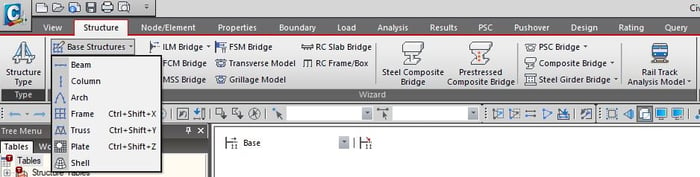
 

Base Structure Wizard
Fig. Base Structure Wizard


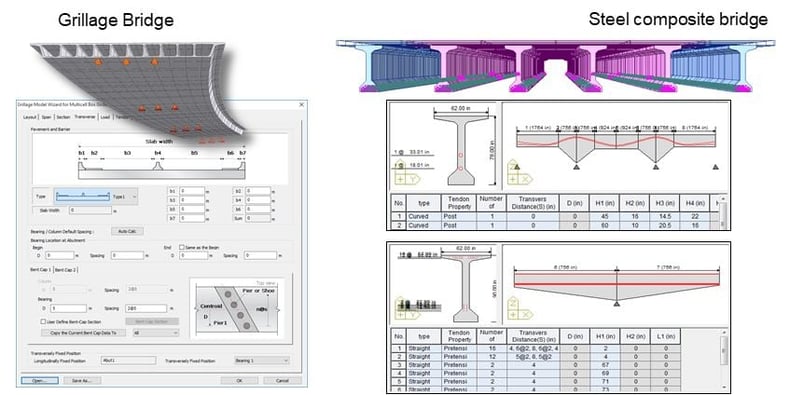
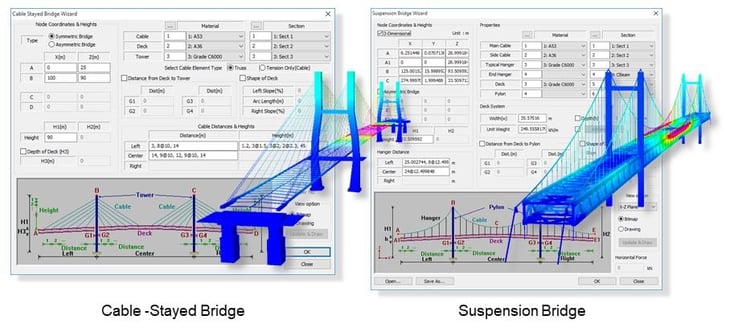
There are special wizard functions in midas Civil for various bridge types.
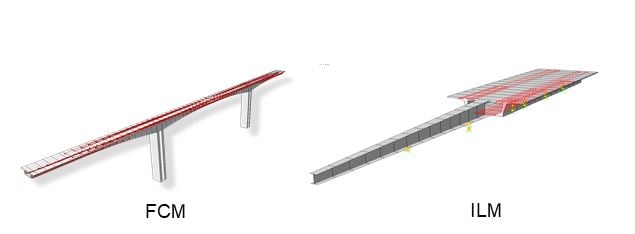


Various Bridge Wizards 1

Various Bridge Wizards 2

Various Bridge Wizards 3
Fig. Various Bridge Wizards


3. Table/MCT Command Shell - Table/Text Formatted Modeling


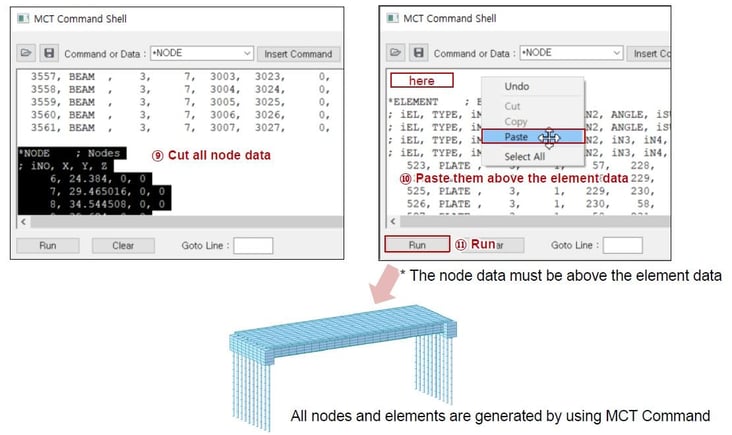
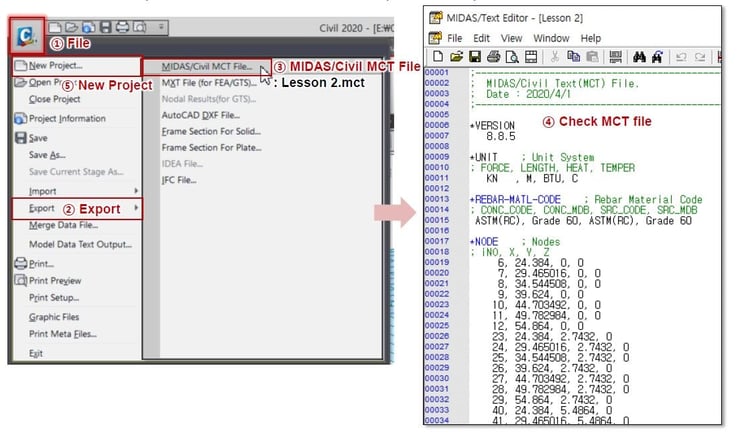
All data in midas Civil can be edited with texts. All data are provided in the table format. And those are extracted as *.mct file and also it can be checked in MCT Command Shell. All data can be copied into the spreadsheet. Therefore, manage your data in a preferred space.
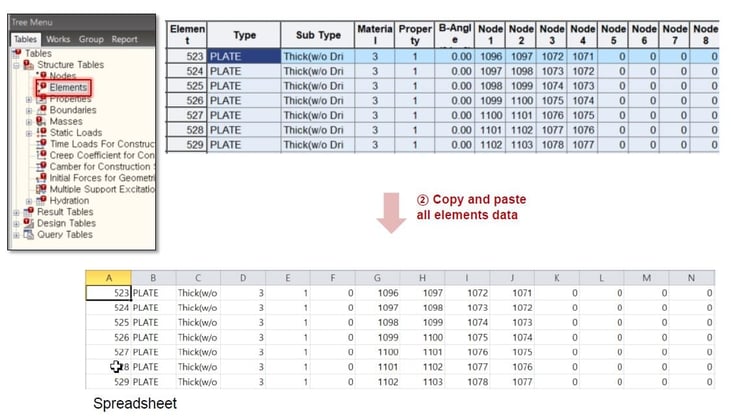
 

Data in Table FormatFig. Data in Table Format


MCT Command Shell

Fig. MCT Command Shell


Export MCT file

Fig. Export MCT file


Watch the full webinar video

 

Susbcribe
MIDAS Newsletter

Thank you, See you soon!
Share
Ji Hoon Kang | Lead Engineer | MIDAS IT

His main role is to work closely with bridge engineers around the world to ensure they are satisfied with midas Civil and to listen the areas of improvement. He also manages multiple training programs to show the shortest path to successfully complete their bridge projects.

Comments
Download Download the Webinar
Presentation file

midas Civil tips&tutorial of the Geometry Modeling Techniques
for Bridge Engineers Seeking for More

All