OVERVIEW
The Summary of Buckling Analysis
1. Define Properties
2. Create a Column
3. Define Supports
4. Define Loads
5. Perform Buckling Analysis
6. Buckling Analysis Result
7. Cantilever Modeling
8. Buckling Analysis Result
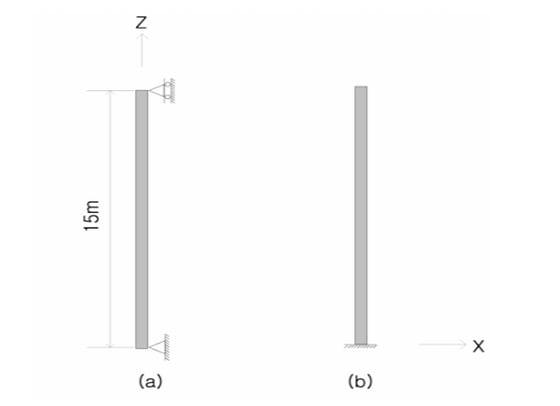
1. Define Properties
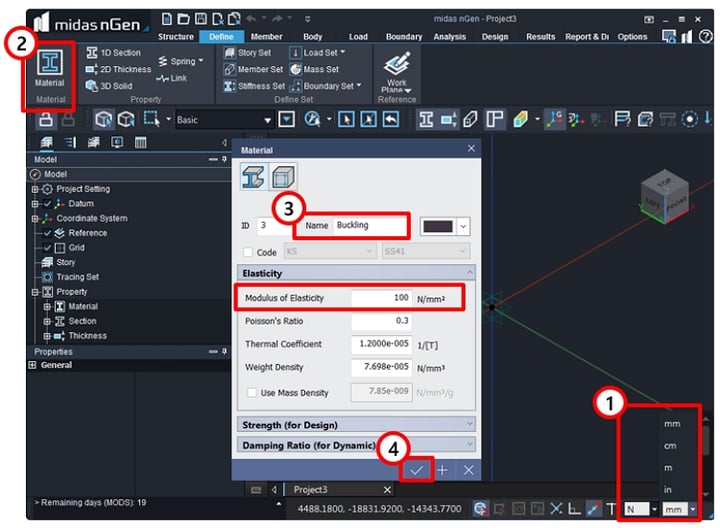
1-1. Define Material
1. Select [ N ], [ mm ] in Status bar.
2. Select [ Define > Material ].
3. Enter [ Buckling ] in Name > Check off [ Code ] > Enter [ 100 ] in 'Modulus of Elasticity'.
4. Click [ OK ].
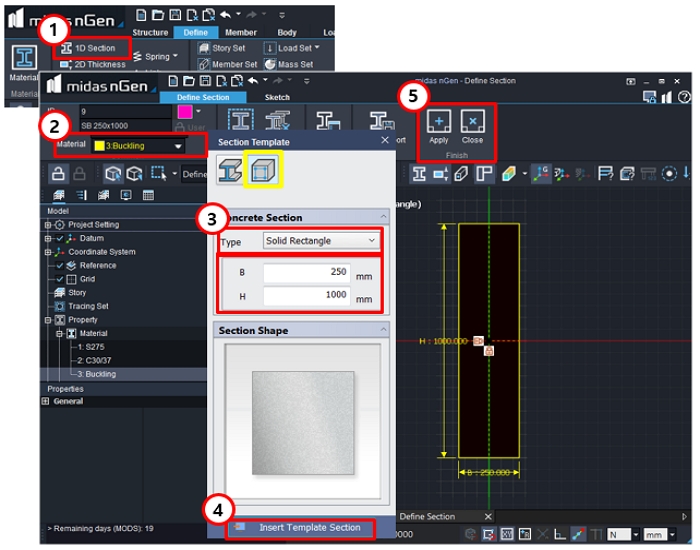
1-2. Define 1D Section
1. Select [ Define > 1D Section ].
2. Select [ Material > Buckling ].
3. Click 'icon' in the Yellow box > Enter [ 250, 1000 ].
4. Click [ Apply ] & [Close ].
2. Create a Column
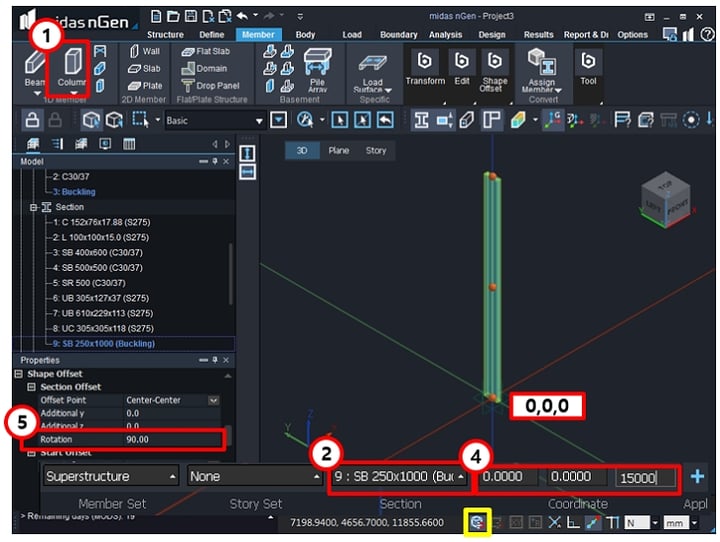
2-1. Create a Column
1. Select [ Member > Column ].
2. Select [ SB 250*1000 (235) ].
3. Click 'Icon' in the Yellow box > Select [ Nearest ].
4. Select [ 0, 0, 0 ] > Enter [ 0, 0, 15000 ].
5. Select the column > [ Properties > Shape Offset > Rotation ] > Enter [ 90 ] > Press [ Enter ].
3. Define Supports
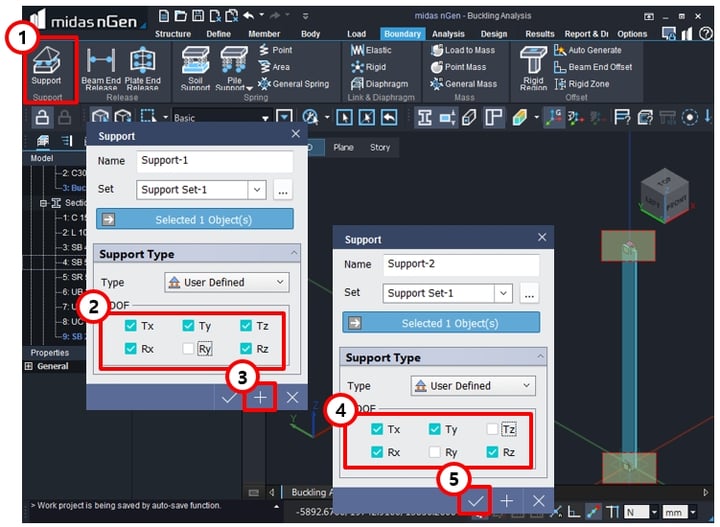
3-1. Define Support - 1 & 2
Apply Supports
1. Select [ Boundary > Support ].
2. Select [ End ] of the Column > Check off [ Ry ].
3. Click [ Apply ].
4. Select [ Top ] of the Column > Check off [ Ry ], [ Tz ].
5. Click [ OK ].
4. Apply Loads
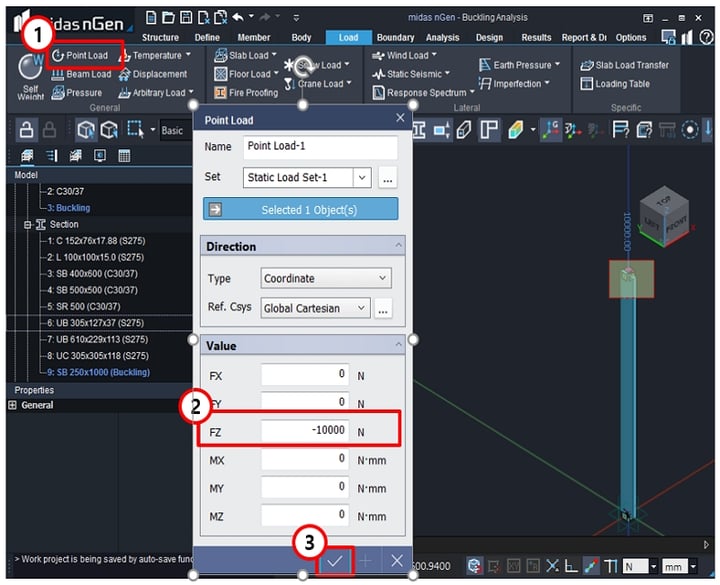
4-1. Apply Point Load
Apply Point Load - 1
1. Select [ Load > Point Load ].
2. Select [ Top ] of the Column > Enter [ -10000 ] in 'FZ'.
3. Click [ OK ].

5. Perform Buckling Analysis
5-1. Analysis Settings
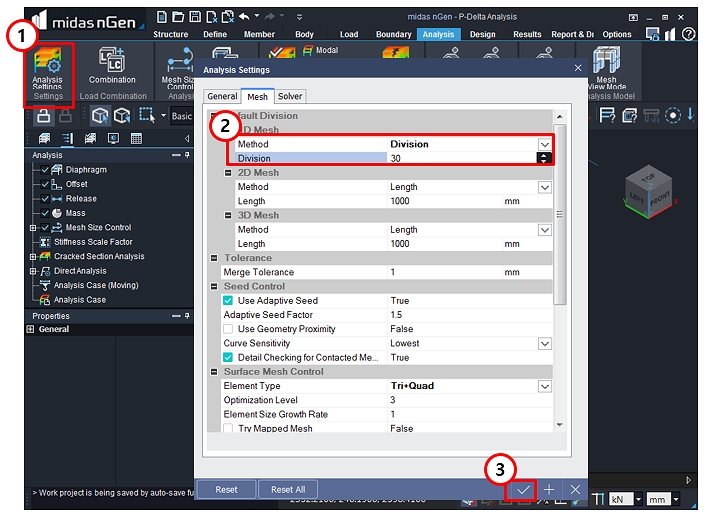
1. Select [ Analysis > Analysis Settings ].
2. Select [ Mesh ] > Enter [ 30 ] in Division.
3. Click [ OK ].
5-2. Perform Analysis
Define Analysis Case & Run Analysis
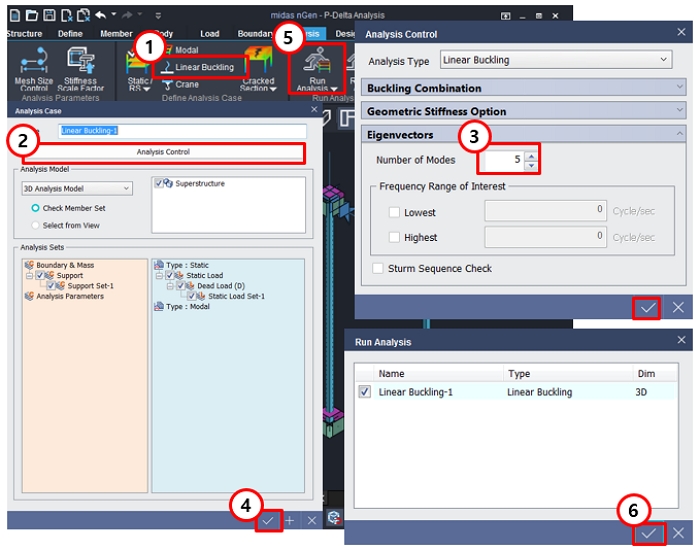
1. Select [ Analysis > Linear Buckling ].
2. Click [ Analysis Control ].
3. Enter [ 5 ] in Number of Modes.
4. Click [ OK ].
5. Select [ Analysis > Run Analysis ].
6. Click [ OK ].
6. Buckling Analysis Result
6-1. Confirm Buckling Analysis Results
Deformation
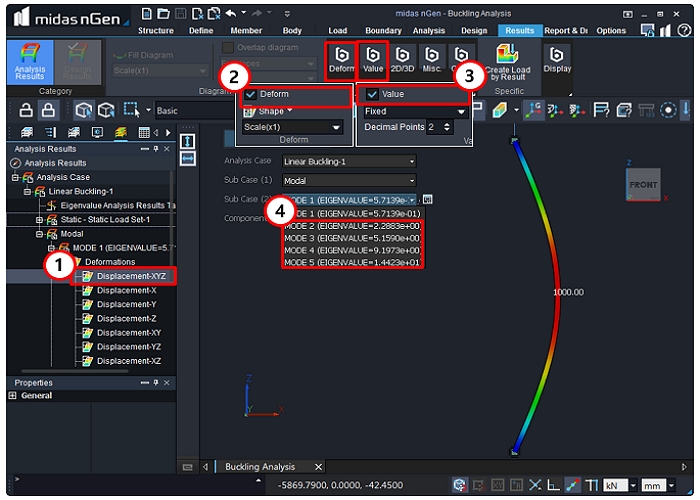
1. Select [ Modal > Mode 1 > Deformations > Displacement-XYZ ].
2. Check on [ Deform ].
3. Check on [ Value ].
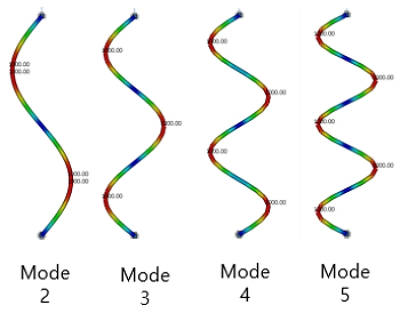
4. Select [ Mode 2 ], [ Mode 3 ], [ Mode 4 ], [ Mode 5 ].
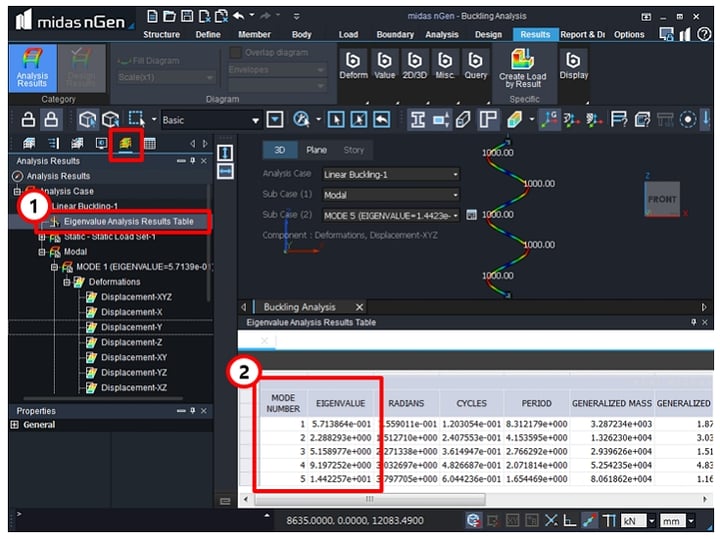
6-2. Confirm Eigenvalue Analysis
Eigenvalue Results
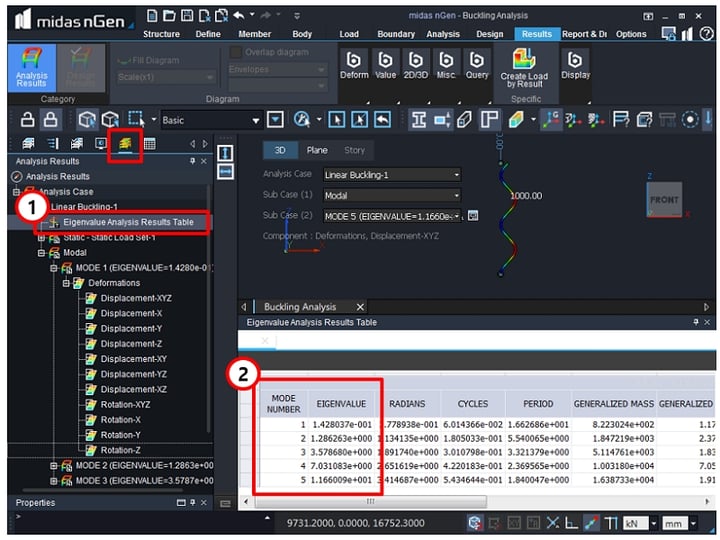
1. Select [ Eigenvalue Analysis Results Table ].
2. Check Data in relation to Mode Numbers.
Eigenvalue = P/Pcr.
7. Cantilever Modeling
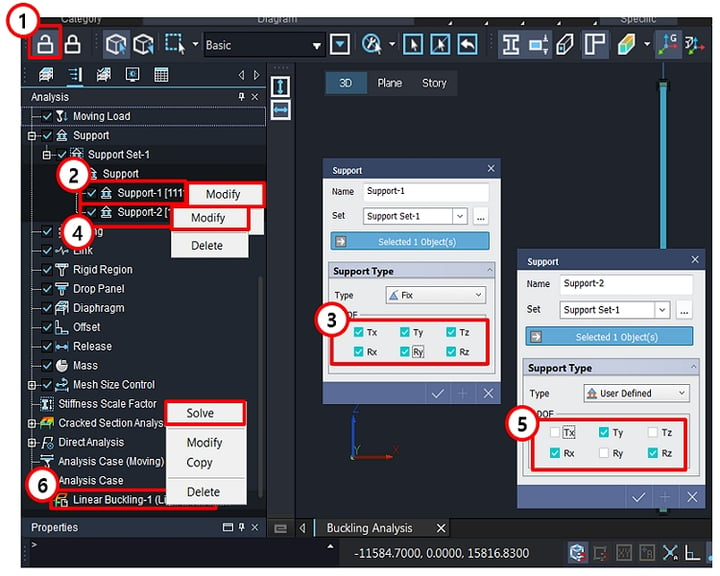
7-1. Cantilever Modeling
1. Click the icon.
2. Select [ Support > Support Set -1 > Support > Support -1 ] > Right-click to click [ Modify ].
3. Select [ DOF All ].
4. Select [ Support > Support Set -1 > Support > Support -2 ] > Right-click to click [ Modify ].
5. Check off [ Tx ].
6. Select [ Analysis Case > Linear Buckling -1] > Click [ Solve ].
8. Buckling Analysis Result
8-1. Confirm Buckling Analysis Results
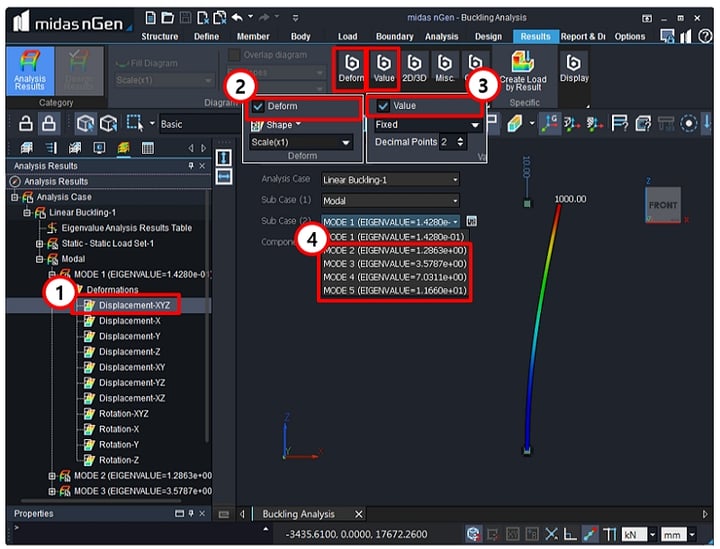
Deformation
1. Select [ Modal > Mode 1 > Deformations > Displacement-XYZ ].
2. Check on [ Deform ].
3. Check on [ Value ].
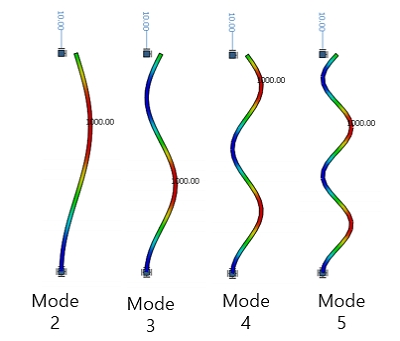
4. Select [ Mode 2 ], [ Mode 3 ], [ Mode 4 ], [ Mode 5 ].
8-2. Confirm Eigenvalue Analysis
Eigenvalue Results
1. Select [ Eigenvalue Analysis Results Table ].
2. Check Data in relation to Mode Numbers.
Eigenvalue = P/Pcr.