Would you like to sign out?

Select Country

  • Afghanistan English
  • Albania English
  • Algeria English
  • American Samoa English
  • Andorra English
  • Angola English
  • Anguilla English
  • Antarctica English
  • Antigua and Barbuda English
  • Argentina Español
  • Armenia English
  • Aruba English
  • Australia English
  • Austria English
  • Azerbaijan English
  • Bahamas English
  • Bahrain English
  • Bangladesh English
  • Barbados English
  • Belarus English
  • Belgium English
  • Belize English
  • Benin English
  • Bermuda English
  • Bhutan English
  • Bolivia Español
  • Bosnia and Herzegovina English
  • Botswana English
  • Bouvet Island English
  • Brazil English
  • British Indian Ocean Territory English
  • British Virgin Islands English
  • Brunei English
  • Bulgaria English
  • Burkina Faso English
  • Burundi English
  • Cambodia English
  • Cameroon English
  • Canada English
  • Cape Verde English
  • Caribbean Netherlands English
  • Cayman Islands English
  • Central African Republic English
  • Chad English
  • Chile Español
  • Christmas Island English
  • Cocos (Keeling) Islands English
  • Colombia Español
  • Comoros English
  • Congo English
  • Cook Islands English
  • Costa Rica Español
  • Côte d’Ivoire English
  • Croatia English
  • Cuba Español
  • Curaçao English
  • Cyprus English
  • Czech Republic English
  • Democratic Republic of the Congo English
  • Denmark English
  • Djibouti English
  • Dominica English
  • Dominican Republic Español
  • Ecuador Español
  • Egypt English
  • El Salvador Español
  • Equatorial Guinea English
  • Eritrea English
  • Estonia English
  • Ethiopia English
  • Falkland Islands English
  • Faroe Islands English
  • Fiji English
  • Finland English
  • France English
  • French Guiana Español
  • French Polynesia English
  • French Southern Territories English
  • Gabon English
  • Gambia English
  • Georgia English
  • Germany English
  • Ghana English
  • Gibraltar English
  • Greece English
  • Greenland English
  • Grenada English
  • Guadeloupe Español
  • Guam English
  • Guatemala Español
  • Guernsey English
  • Guinea English
  • Guinea-Bissau English
  • Guyana English
  • Haiti Español
  • Heard Island and McDonald Islands English
  • Honduras Español
  • Hong Kong English
  • Hungary English
  • Iceland English
  • India English
  • Indonesia English
  • Iran English
  • Iraq English
  • Ireland English
  • Isle of Man English
  • Israel English
  • Italy English
  • Jamaica English
  • Japan 日本語
  • Jersey English
  • Jordan English
  • Kazakhstan English
  • Kenya English
  • Kiribati English
  • South Korea 한국어
  • Kuwait English
  • Kyrgyzstan English
  • Laos English
  • Latvia English
  • Lebanon English
  • Lesotho English
  • Liberia English
  • Libya English
  • Liechtenstein English
  • Lithuania English
  • Luxembourg English
  • Macau English
  • Madagascar English
  • Malawi English
  • Malaysia English
  • Maldives English
  • Mali English
  • Malta English
  • Marshall Islands English
  • Martinique English
  • Mauritania English
  • Mauritius English
  • Mayotte English
  • Mexico Español
  • Micronesia English
  • Moldova English
  • Monaco English
  • Mongolia English
  • Montenegro English
  • Montserrat English
  • Morocco English
  • Mozambique English
  • Myanmar English
  • Namibia English
  • Nauru English
  • Nepal English
  • Netherlands English
  • New Caledonia English
  • New Zealand English
  • Nicaragua Español
  • Niger English
  • Nigeria English
  • Niue English
  • Norfolk Island English
  • Northern Mariana Islands English
  • Norway English
  • Oman English
  • Pakistan English
  • Palau English
  • Palestine English
  • Panama Español
  • Papua New Guinea English
  • Paraguay Español
  • Peru Español
  • Philippines English
  • Pitcairn Islands English
  • Poland English
  • Portugal Español
  • Puerto Rico Español
  • Qatar English
  • Réunion English
  • Romania English
  • Russia English
  • Rwanda English
  • Saint Barthélemy Español
  • Saint Helena English
  • Saint Kitts and Nevis English
  • Saint Lucia English
  • Saint Martin Español
  • Saint Pierre and Miquelon English
  • Saint Vincent and the Grenadines English
  • Samoa English
  • San Marino English
  • São Tomé and Príncipe English
  • Saudi Arabia English
  • Senegal English
  • Serbia English
  • Seychelles English
  • Sierra Leone English
  • Singapore English
  • Sint Maarten English
  • Slovakia English
  • Slovenia English
  • Solomon Islands English
  • Somalia English
  • South Africa English
  • South Georgia English
  • South Sudan English
  • Spain English
  • Sri Lanka English
  • Sudan English
  • Suriname English
  • Svalbard and Jan Mayen English
  • Eswatini English
  • Sweden English
  • Switzerland English
  • Syria English
  • Taiwan English
  • Tajikistan English
  • Tanzania English
  • Thailand English
  • Togo English
  • Tokelau English
  • Tonga English
  • Trinidad and Tobago English
  • Tunisia English
  • Turkey English
  • Turkmenistan English
  • Turks and Caicos Islands English
  • Tuvalu English
  • U.S. Virgin Islands English
  • Uganda English
  • Ukraine English
  • United Arab Emirates English
  • United Kingdom English
  • United States English
  • U.S. Minor Outlying Islands English
  • Uruguay Español
  • Uzbekistan English
  • Vanuatu English
  • Vatican City English
  • Venezuela Español
  • Vietnam English
  • Wallis and Futuna English
  • Western Sahara English
  • Yemen English
  • Zambia English
  • Zimbabwe English
  • Åland Islands English
  • East Timor English
  • Netherlands Antilles English
  • Serbia and Montenegro English
  • North Macedonia English
  • Timor-Leste English

How to Utilize AutoCAD in Geometry Modeling in midas Civil

August 3, 2021
BLOG TIPS & TUTORIALS

How to Utilize AutoCAD in Geometry Modeling


Table of Contents


1. How to Import AutoCAD Drawings to midas Civil

2. Tips and Reminders


1. How to Import AutoCAD Drawings to midas Civil


Supposed you are given this cross-section of a bridge in AutoCAD, and you need to interpret this as a model in midas Civil:
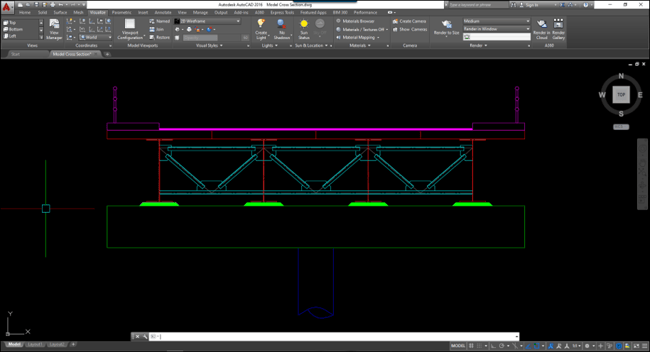
 

Image 1-1 Sample Bridge Cross Section

Figure 1. Sample bridge cross-section


To most engineers, it is easier to interpret this cross-section to a bridge geometric model using AutoCAD, like this:
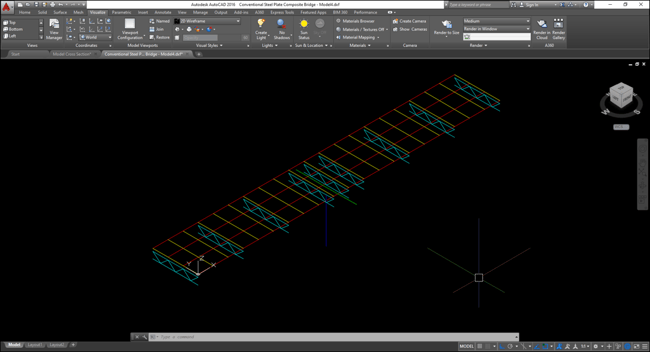
 

Image 1-2 Sample Bridge Geometric ModeFigure 2. Sample bridge geometric mode


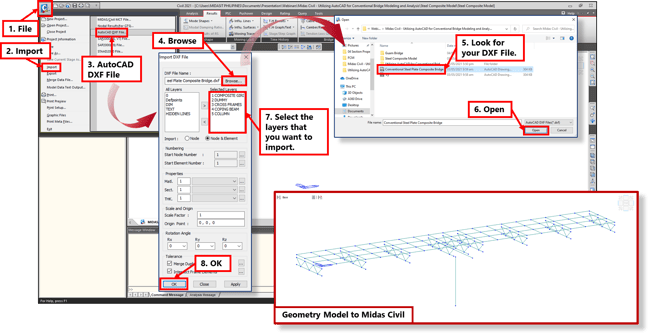
Since midas Civil is fully compatible with AutoCAD, you can directly use this drawing as your geometry model in midas Civil. Just simply save your drawing to a DXF (.dxf) file, then you can already import it to midas Civil.
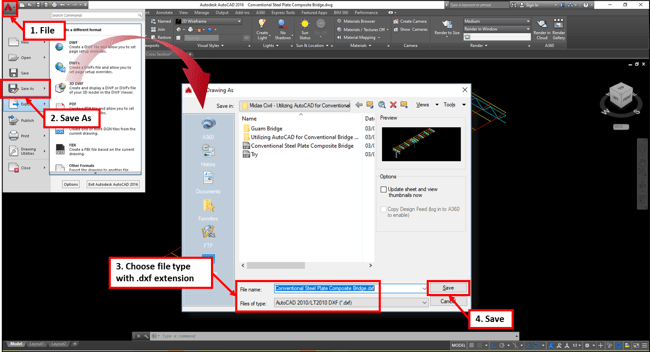
 

Image 1-3 AutoCAD Save As to DXF FileFigure 3. AutoCAD save as DXF file


Image 1-4 Import DXF File to Midas CivilFigure 4. Import DXF file to midas Civil


And that easy, you now have the geometry model of your structure, ready to use in your midas Civil. But there are few things that you need to consider to use this method to draw your model. With this, we will also give some Tips and Reminders on how to effectively draw your model in AutoCAD.


2. Tips and Reminders


2.1 The first thing that you need to consider before importing your DXF file is to make sure that the active unit of measurement in your midas Civil is consistent with the unit of measurement that you considered in your drawing. For example, you have drawn in AutoCAD in millimeters, then the active unit of measurements in midas Civil should also be in millimeters before importing.


You can easily change the active unit of measurement in midas Civil using the functions available at the lower-right of the interface:
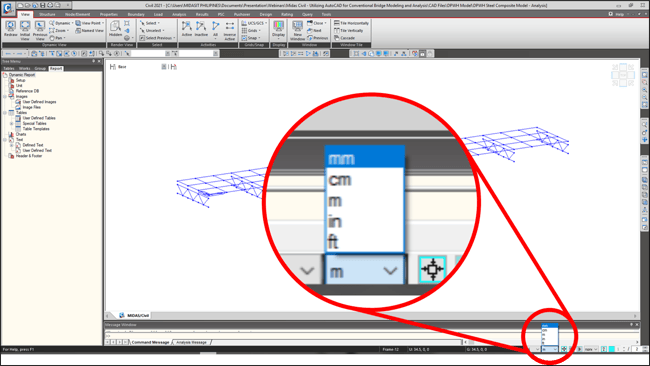
 

Image 2-1 Active Unit of MeasurementFigure 5. Active unit of measurement


2.2 Draw your elements in AutoCAD considering the section offset that you will use in midas Civil. For example, you will consider the offset of a steel composite section on the center-top, then, you should draw the element that will represent your girder in AutoCAD at center-top as well.
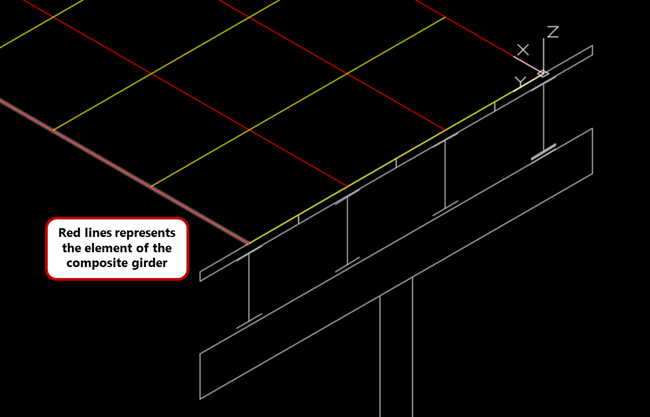
 

Image 2-2 Offset Consideration

Figure 6. Offset consideration


2.3 Set different layers for each structural component since midas Civil will adapt these layers as Structural Groups. This is useful especially when you are going to define Construction Stages on your model since you no longer need to define these groups one by one anymore. You can also consider creating different layers with the consideration of the launching stage already.
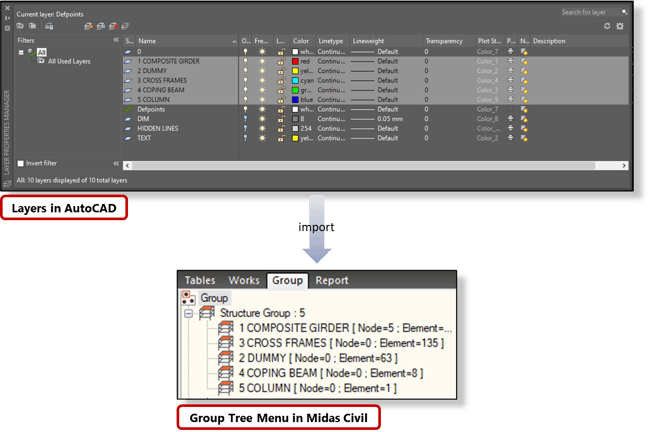
 

Image 2-3 AutoCAD Layers-Midas Civil Structure GroupFigure 7. AutoCAD layers- midas Civil Structure Group


2.4 The direction on how you draw in AutoCAD will also be the basis of your element’s local axis and local direction in midas Civil.


2.5 Midas Civil will also follow the World UCS of your AutoCAD for the coordinates of your nodes and elements. Since when drawing in AutoCAD in 3D, you need to move your origin from time to time to draw on different planes. With this, no matter what active coordinate system that you are in, midas Civil will always follow the world UCS. It is highly suggested to locate a reference point of your model on the origin of the World UCS for easier navigation once you import to midas Civil.
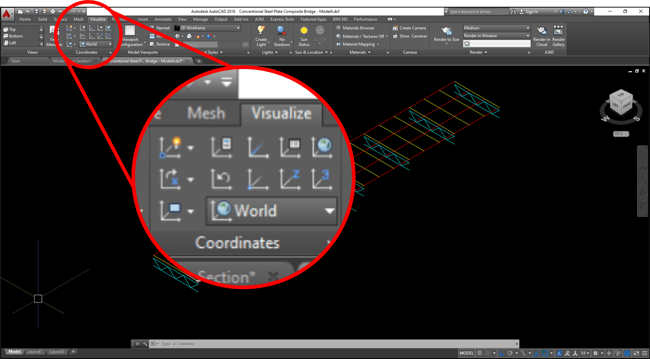
 

Image 2-4 AutoCAD Coordinate SystemsFigure 8. AutoCAD Coordinate System


2.6  Additional things to consider when drawing in AutoCAD:

       2.6.1 Polylines and Lines in AutoCAD will be imported as beam elements.

       2.6.2 Rectangular enclosed Polylines will be imported as plate elements.

       2.6.3 3-points Arcs will be imported as beam elements considering the end-to-end nodes only. It is                     advisable to divide your arcs into multipoint arch before importing. 

       2.6.4 Solids cannot be imported from AutoCAD to midas Civil.
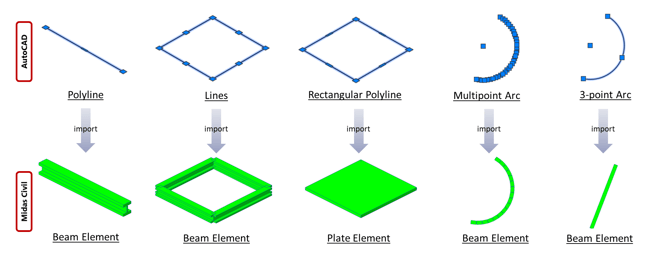
 

Image 2-5 Element Type ComparisonFigure 9. Element type comparison


Sample DXF file is also downloadable on this article so you can try practicing how to import your drawing from AutoCAD to Midas Civil.


 

Susbcribe
MIDAS Newsletter

Thank you, See you soon!
Share
About the Author
Norlan De Vera | Technical Engineer | MIDAS IT Philippines

Engineer Norlan obtained his bachelor's degree in Civil Engineering at the Polytechnic University of the Philippines (PUP) and is currently in process of taking his master's degree in Structural Engineering.  Engineer Norlan is currently a Technical Support Engineer at MIDAS IT Philippines but before joining MIDAS IT, Norlan worked in various bridge-related projects using midas Civil. He is very passionate about his work and wants to further pursue his passion in bridge design/engineering and teaching. 

Comments
DOWNLOAD DXF Model Download

Please fill out the form below
to download the DXF file

All